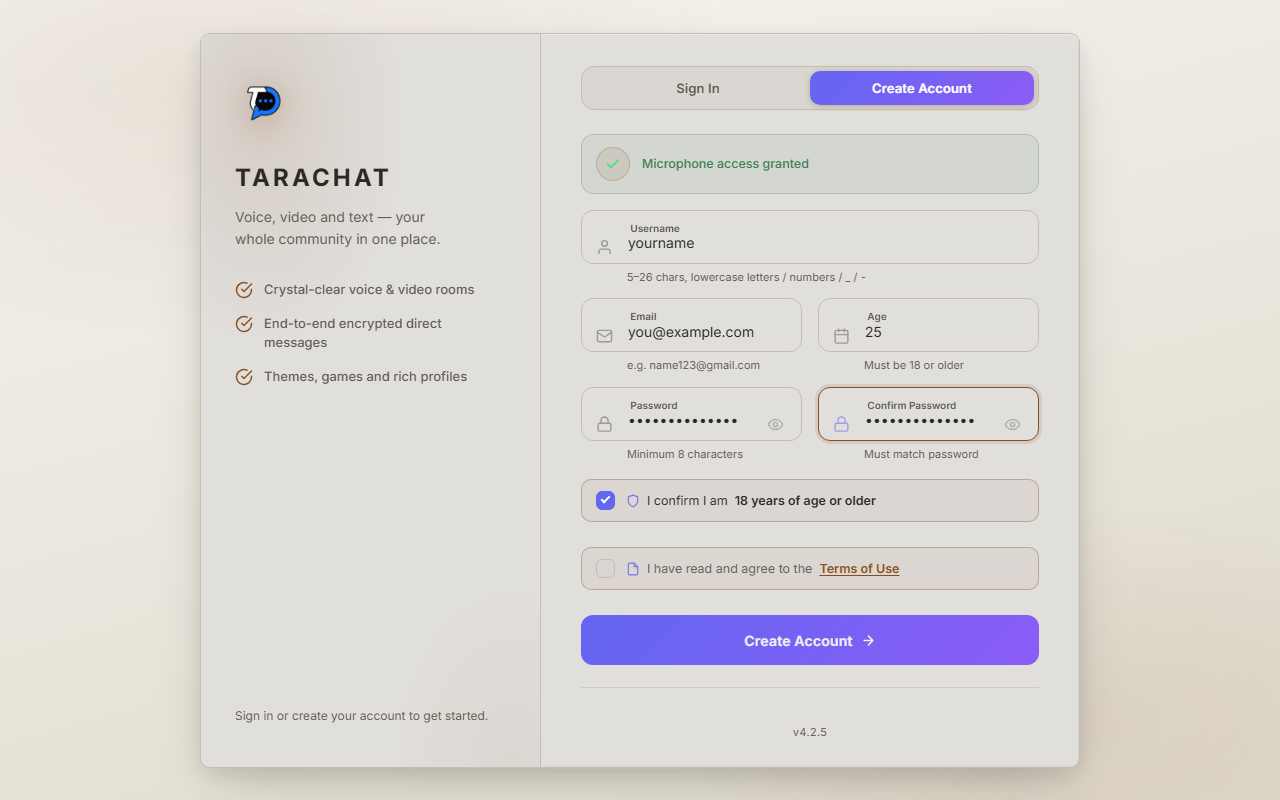
Go to the TaraChat sign-in page and click Create Account at the top. Fill in four things:
- Username — the name people will see. 5 to 26 letters or numbers, lowercase only. TaraChat tells you right away if it's taken.
- Email — only used if you ever need to reset your password. No one else sees it.
- Age — you must be 18 or older to use TaraChat.
- Password — at least 8 characters. You'll type it twice to make sure it matches.
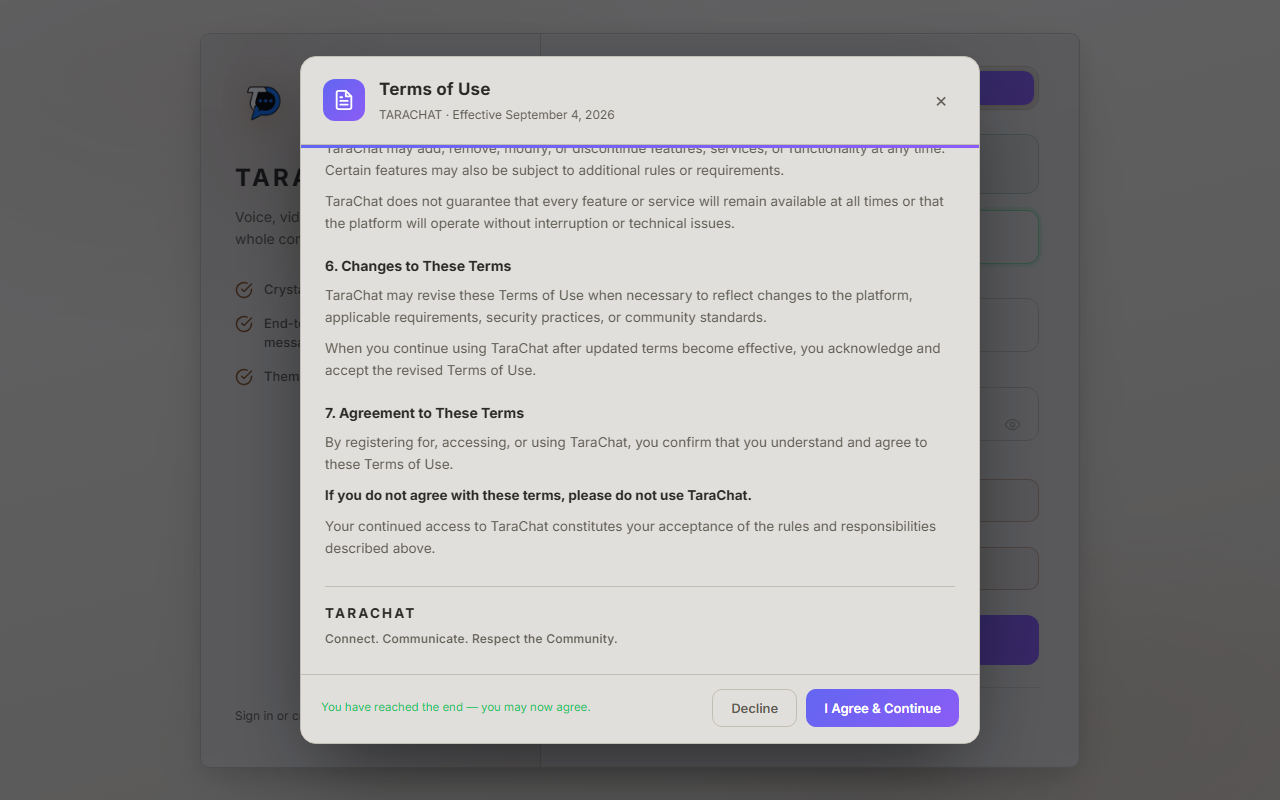
Then tick "I confirm I am 18 years of age or older", and read the Terms of Use. You have to scroll all the way to the bottom of that pop-up before you're allowed to agree to it — that's normal, not a bug.
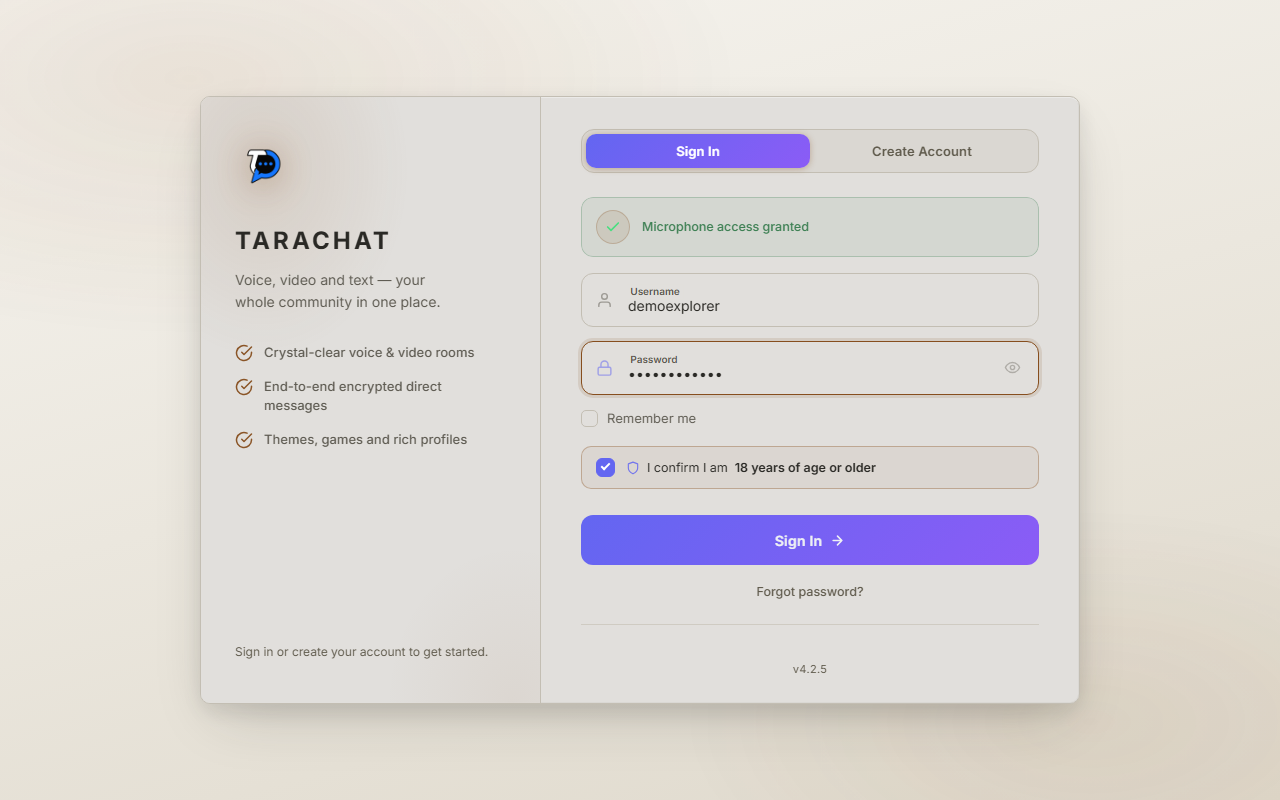
Type your username and password, tick the 18+ box again, and click Sign In.
A couple of things that might come up:
- If you turned on Two-Factor Authentication (an extra security code), you'll be asked to enter a 6-digit code after your password.
- Forgot your password? Click "Forgot password?" under the Sign In button to get a reset link by email, or use a Recovery Code if you saved one earlier.
A "room" in TaraChat is like a group chat — think of it as one channel where a group of people talk, share voice, and hang out.
To join a room someone else made: look through the list on your home screen, use the General, Adult, or Private tabs to filter, or type in the search box. Click a room to open it. A "Private" room needs an invite code from someone already inside.
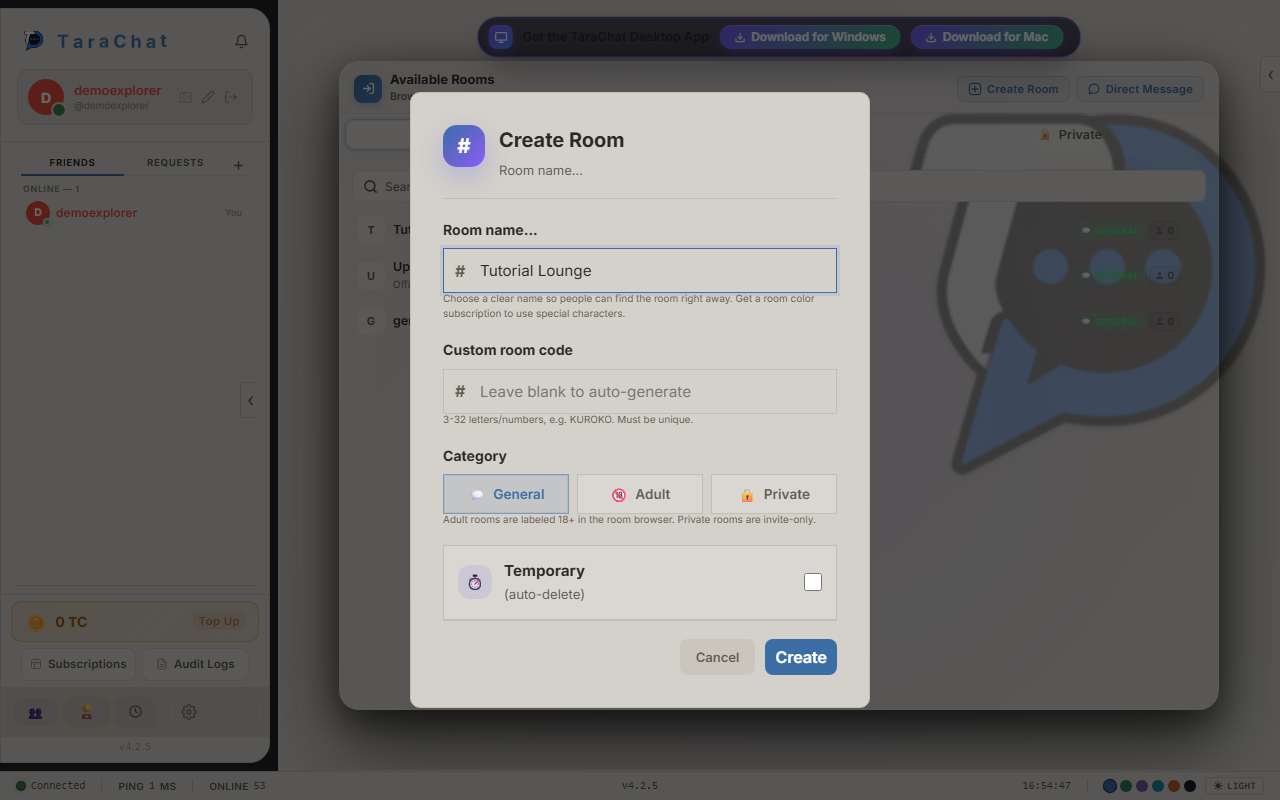
To make your own room: click Create Room, then fill in:
- A name for the room.
- A category — General, Adult, or Private (Private rooms are invite-only and hidden from the room list).
- Optionally, a room can be set to delete itself automatically after a set number of hours.
Every room has people with different levels of control, shown with a small badge next to their name:
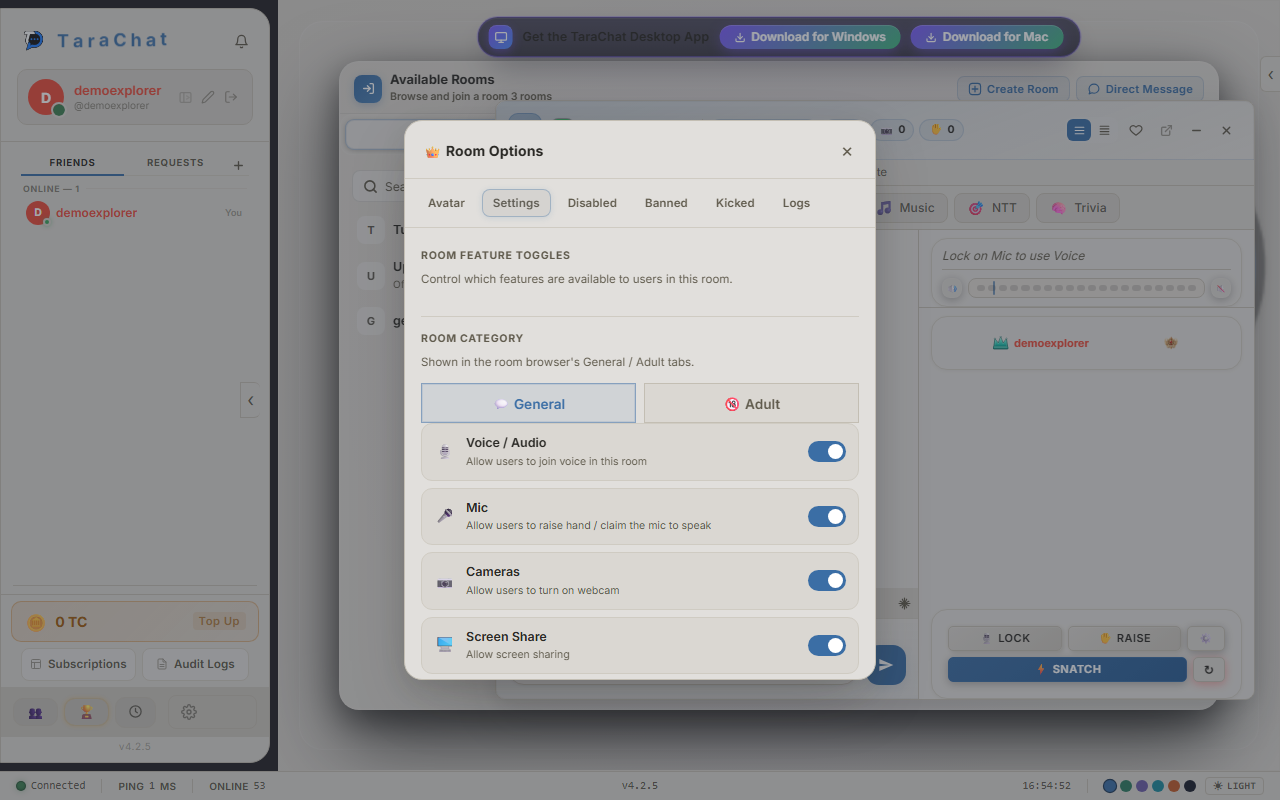
If you own or moderate a room, click 👑 Room Options at the top of the room, then the Settings tab, to turn features on or off for everyone in that room — for example, you can switch off Voice, Cameras, or Screen Share if you don't want them used.
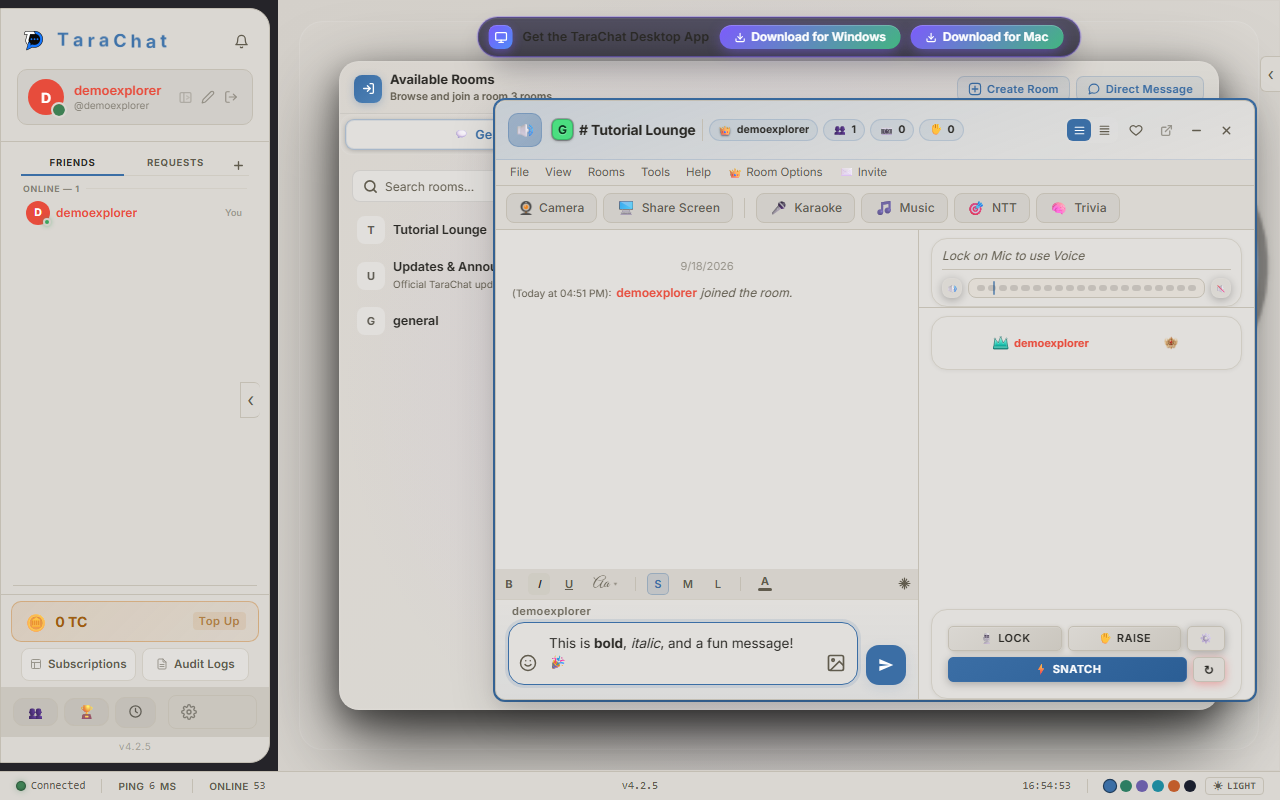
Click the message box at the bottom of a room and start typing. Above the box is a row of style buttons — highlight some of your text and click one to apply it:
- B makes text bold, I makes it italic, U underlines it.
- Aa lets you change the font. S / M / L changes the text size.
- The A with a color swatch lets you pick a text color.
You can also just type special characters and TaraChat will style the text for you automatically:
| Type this | What happens |
|---|---|
| **bold** | Makes the text bold |
| *italic* | Makes the text italic |
| ~~strike~~ | Puts a line through the text |
| `code` | Shows text in a monospace font, like computer code |
| > quote | Turns the line into a quote |
| # Heading | Makes a big, bold heading |
| - item | Makes a bullet-point list |
| ||spoiler|| | Hides the text until someone clicks it |
| @username | Mentions someone — they get notified |
You can also drag and drop a picture straight into the message box to share it.
A "slash command" is a short bit of text starting with / that does something special instead of just sending a plain message. Type it into the message box like normal text, then press Enter.
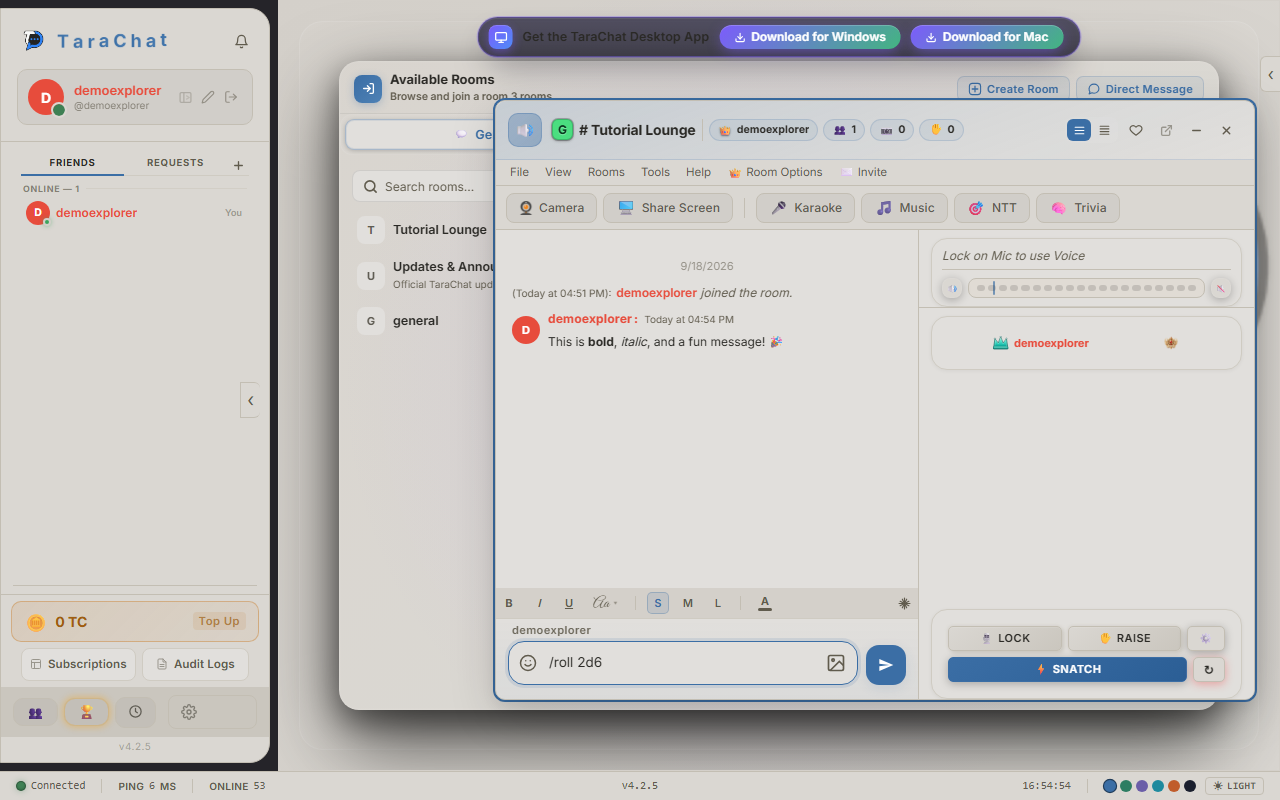
/roll 2d6 rolls two 6-sided dice for everyone to see.| Command | What it does |
|---|---|
| /me is happy | Sends "YourName is happy" in italics |
| /nick NewName | Changes your username |
| /spoiler surprise! | Sends a hidden message people click to reveal |
| /gif cat | Searches for a "cat" GIF and posts it |
| /roll 2d6 | Rolls dice — here, two 6-sided dice |
| /flip | Flips a coin |
| /hug @friend | Sends a hug to someone |
| /brb, /afk, /bbs | Posts a note and marks you as Away |
| /clear | Clears the chat from your own screen only |
Move your mouse over any message and a small row of icons appears above it. Here's what each one does:
- 😀 React — stick an emoji reaction onto the message.
- 📋 Copy — copies the message text.
- ↩️ Reply — replies directly to that message.
- 📌 Pin — saves it to the room's Pinned Messages list, so it's easy to find later.
- ✏️ Edit and 🗑️ Delete — only on your own messages.
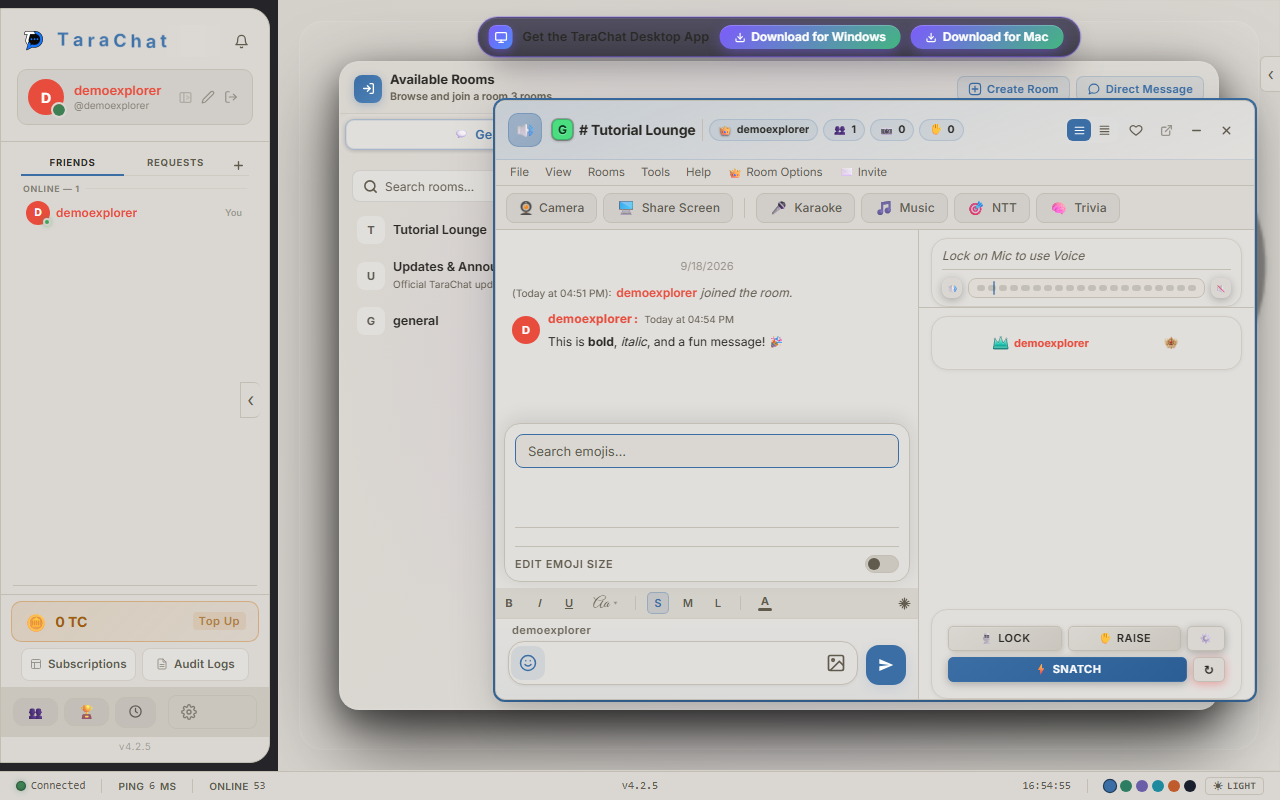
Click the smiley face 😀 icon next to the message box to open the emoji picker. Emoji are sorted into groups like Smileys, Animals, and Food, and there's a search box at the top if you know what you're looking for.
TaraChat also has real "gifts" you can buy for yourself or a friend using TC Coins — things like a colored username, a crown icon, or a badge. We cover exactly how to buy these in Step 17.
Voice chat doesn't start automatically — you choose when to join. Inside a room, look for the voice panel on the right and click 🎙️ Join (it may also be labeled Lock).
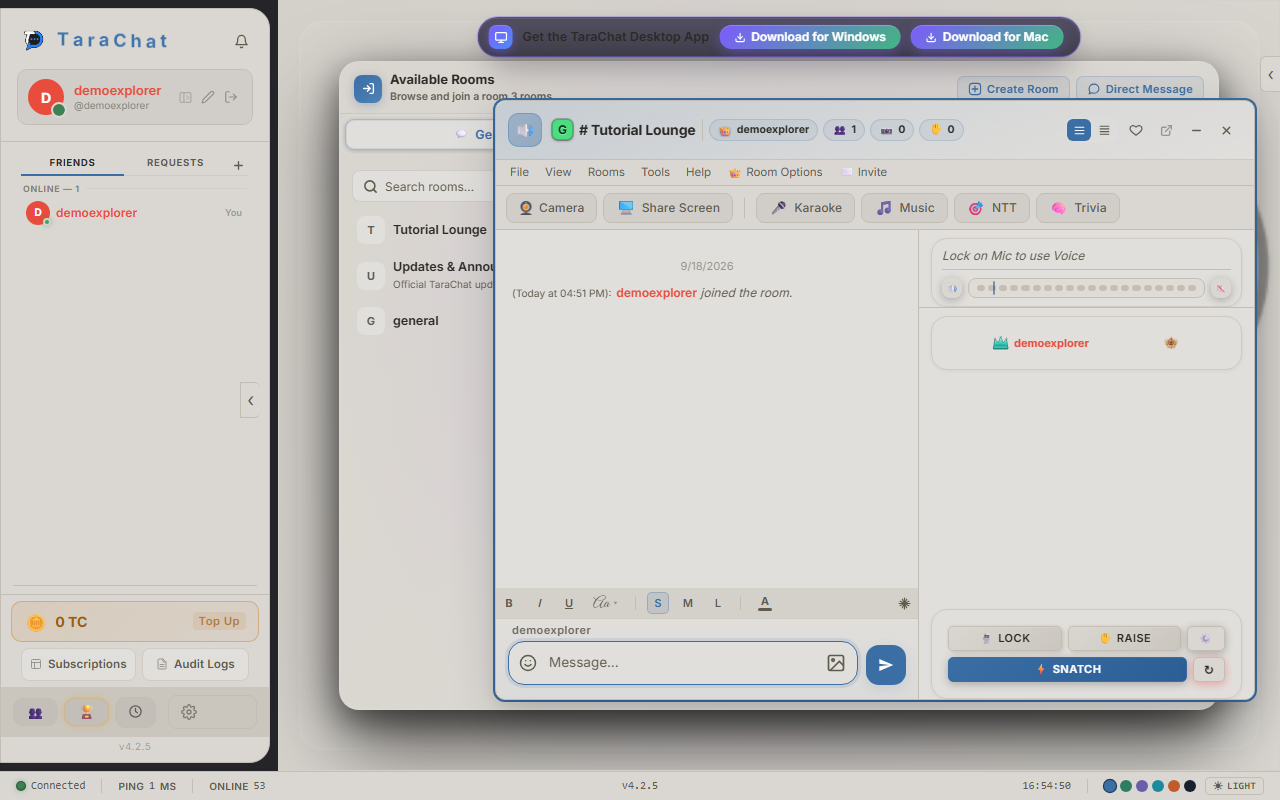
Once you're in voice, you can:
- Mute yourself so others can't hear you.
- Deafen yourself so you can't hear anyone either.
- Click Refresh Voice (the ↻ icon) if your audio sounds broken or stuck — this reconnects you without leaving the room.
TaraChat remembers if you were muted, so you won't accidentally un-mute yourself just by coming back later.
Here's something different about TaraChat's voice chat: only one person can talk at a time — like a walkie-talkie, not everyone talking over each other. Whoever is speaking is called the "mic owner."
If you want a turn to speak:
- Click ✋ Raise Hand to politely ask for a turn. Whoever is in charge of the room can then hand you the mic.
- Click ⚡ Snatch to take the mic immediately, if the room allows it.
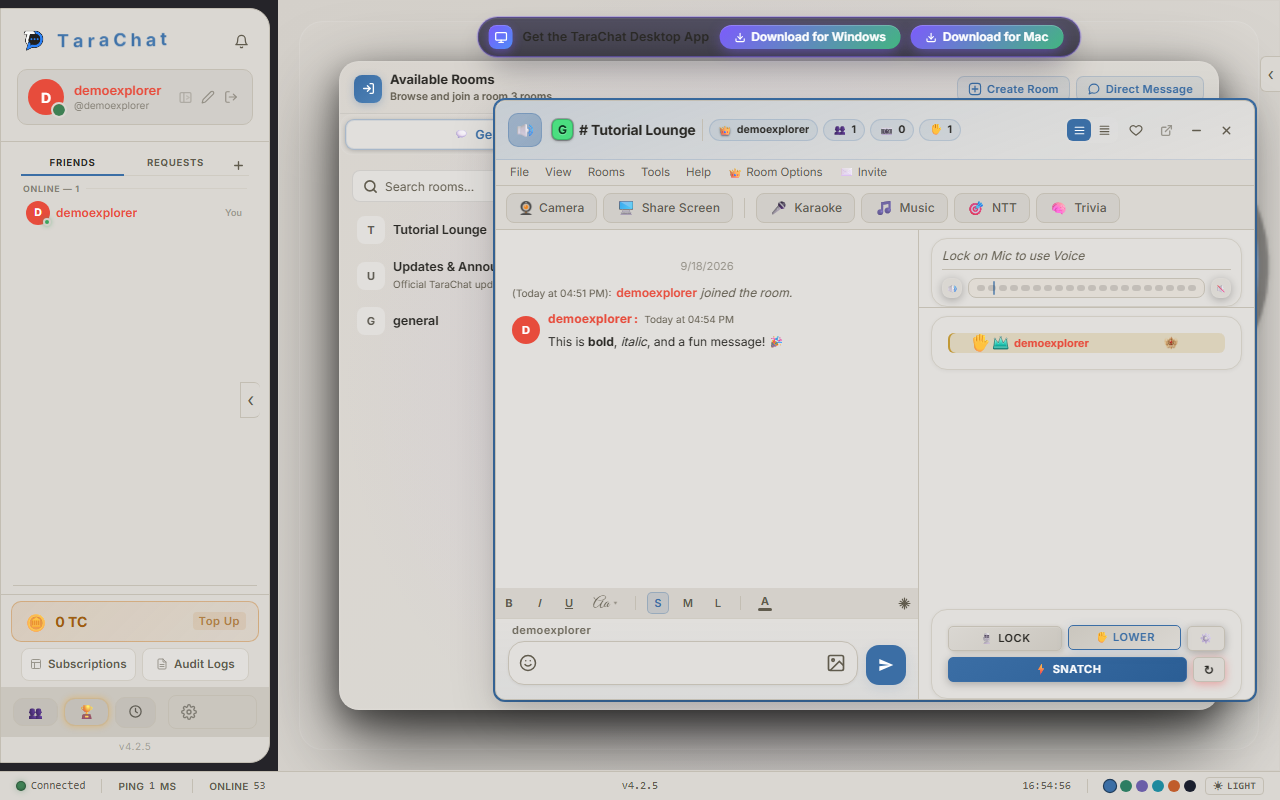
This system gets improved often — if handing off the mic ever feels slow, click Refresh Voice and it usually sorts itself out.
If the room allows it, click 📷 Camera to turn your webcam on, or 🖥️ Share Screen to show your screen to the room.
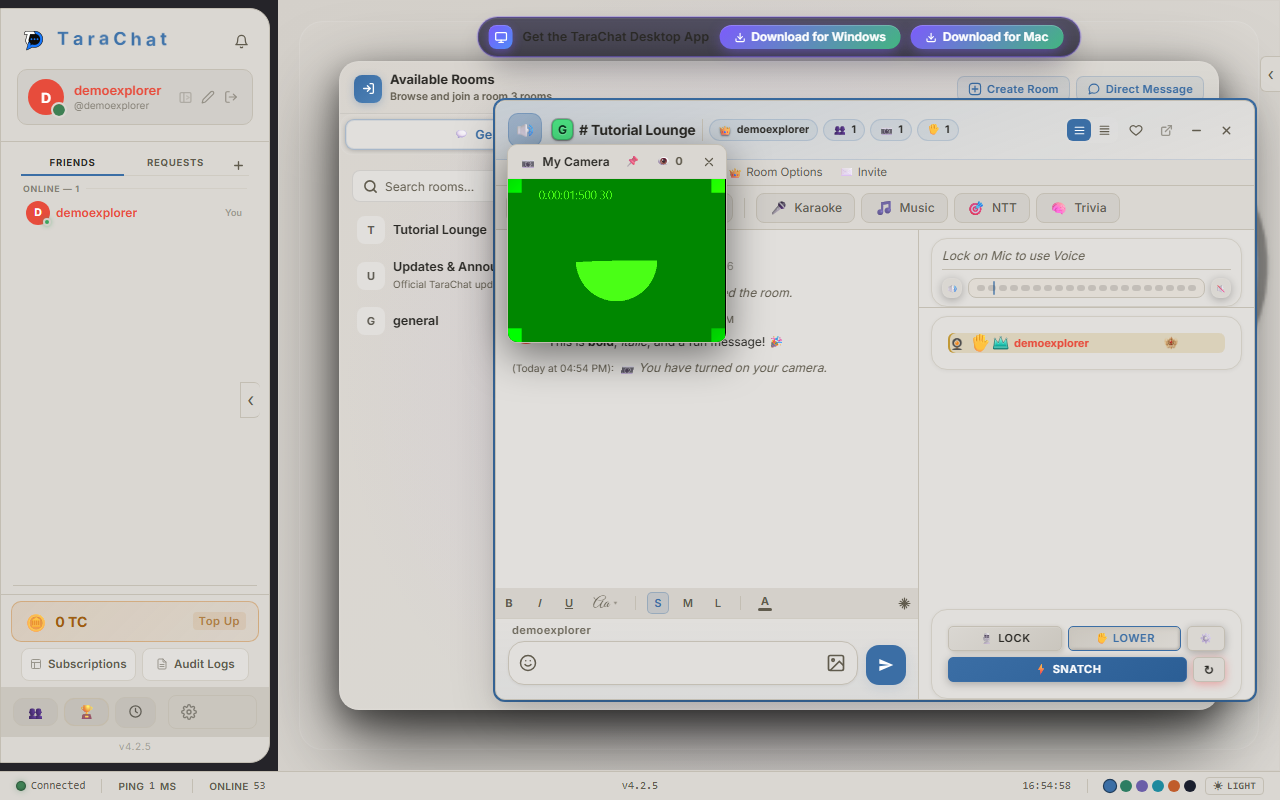
That video window can be dragged anywhere on your screen, made bigger with the fullscreen button, or pinned so it always stays on top of other windows.
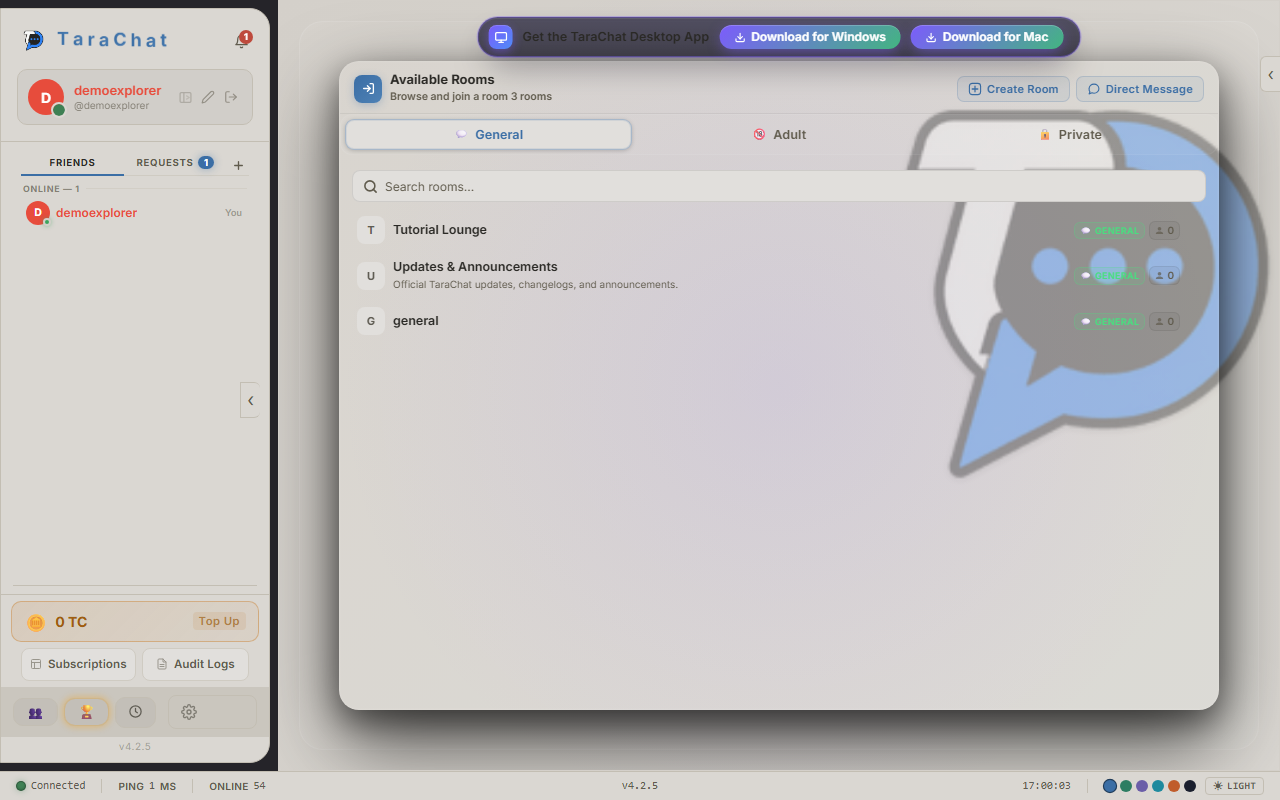
Click the + next to "Friends" in your sidebar, then type someone's username and click Add. This sends them a friend request.
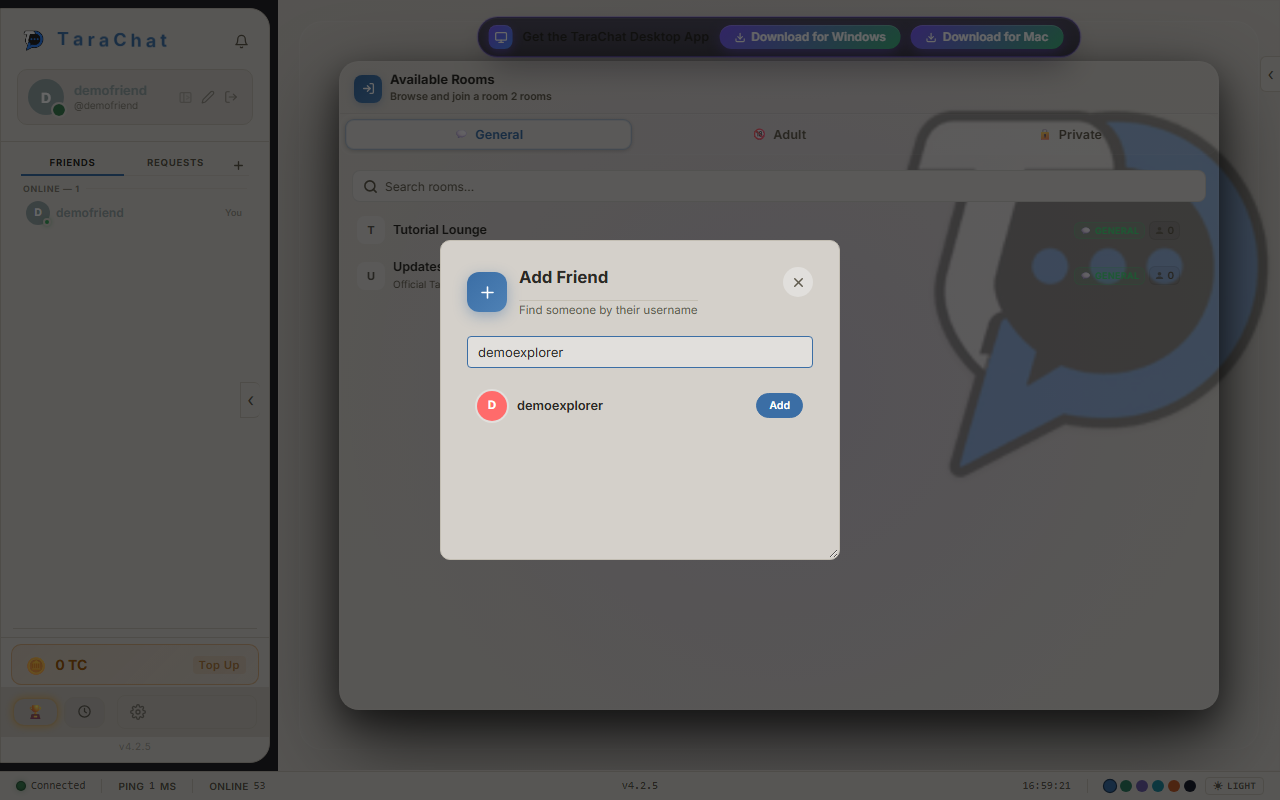
On the other end, they'll see the request under their Requests tab, with a green checkmark to accept it or a red X to decline.
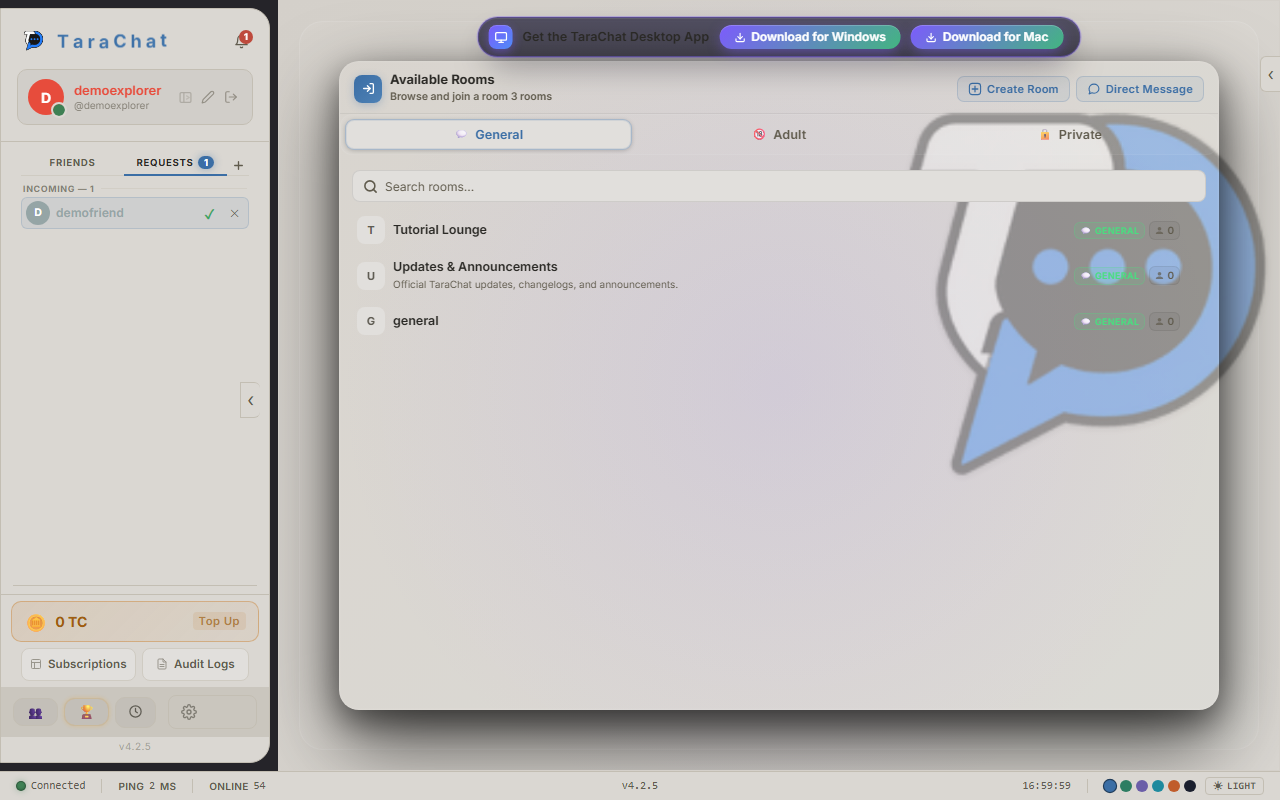
Once you're friends, click their name in your Friends list to open a private chat with just the two of you (a "DM," short for direct message).
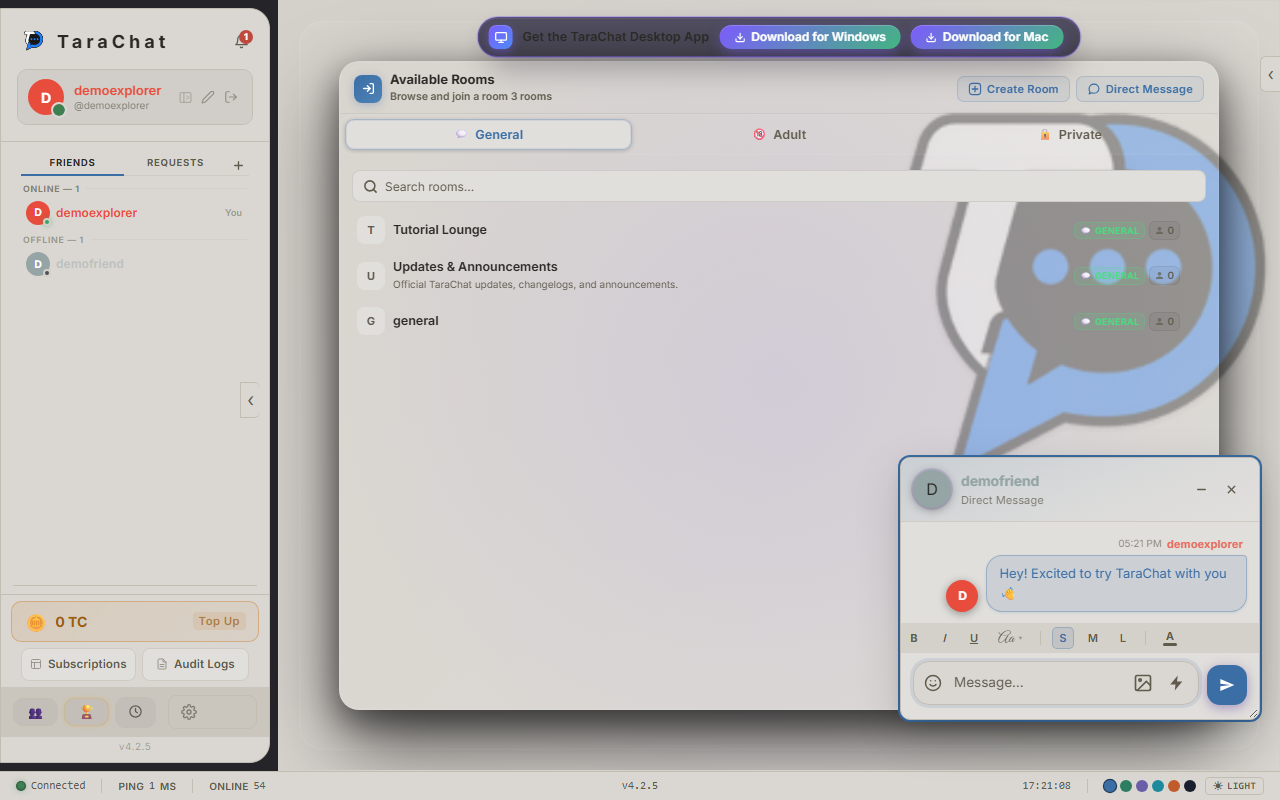
Your private messages are locked with a form of security called end-to-end encryption. In plain terms: your messages are scrambled so that only you and the person you're chatting with can read them — not even TaraChat's own servers can see the actual words.
The first time you open a DM on a device, you may see a "Password Required" screen. This isn't your normal login — it's asking for your password again just to unlock this extra layer of security on that device.
If a message ever shows up as "🔒 Encrypted — unable to decrypt" instead of real text, it usually means this device's security key doesn't match — tap it to try fixing it automatically.
Click your profile picture to set your status, so friends know what you're up to:
- Online — you're around and available.
- Away — you've stepped away for a bit.
- Do Not Disturb — you're busy; notifications are quieter.
- Invisible — you appear offline to everyone.
A quick shortcut: typing /brb, /afk, or /bbs in any message box posts a short note and sets you to Away automatically.
Click the ⚙️ gear icon in the bottom-left to open Settings. Here's what each section actually does:
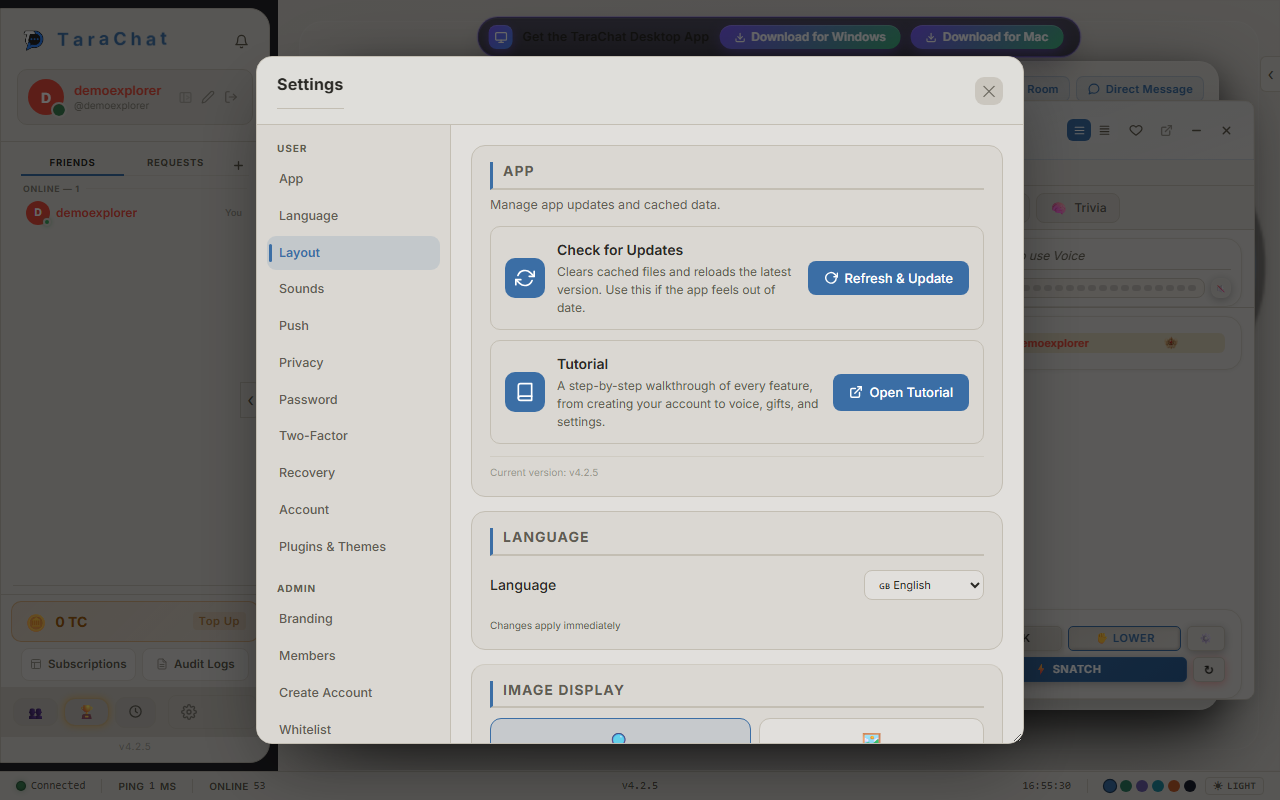
Using the desktop app? You'll also see Desktop Shortcuts and Desktop App sections that don't exist on the web version.
TC Coins are TaraChat's currency for buying gifts, crowns and other extras. Click the coin balance in your sidebar to open your wallet, then Top Up.
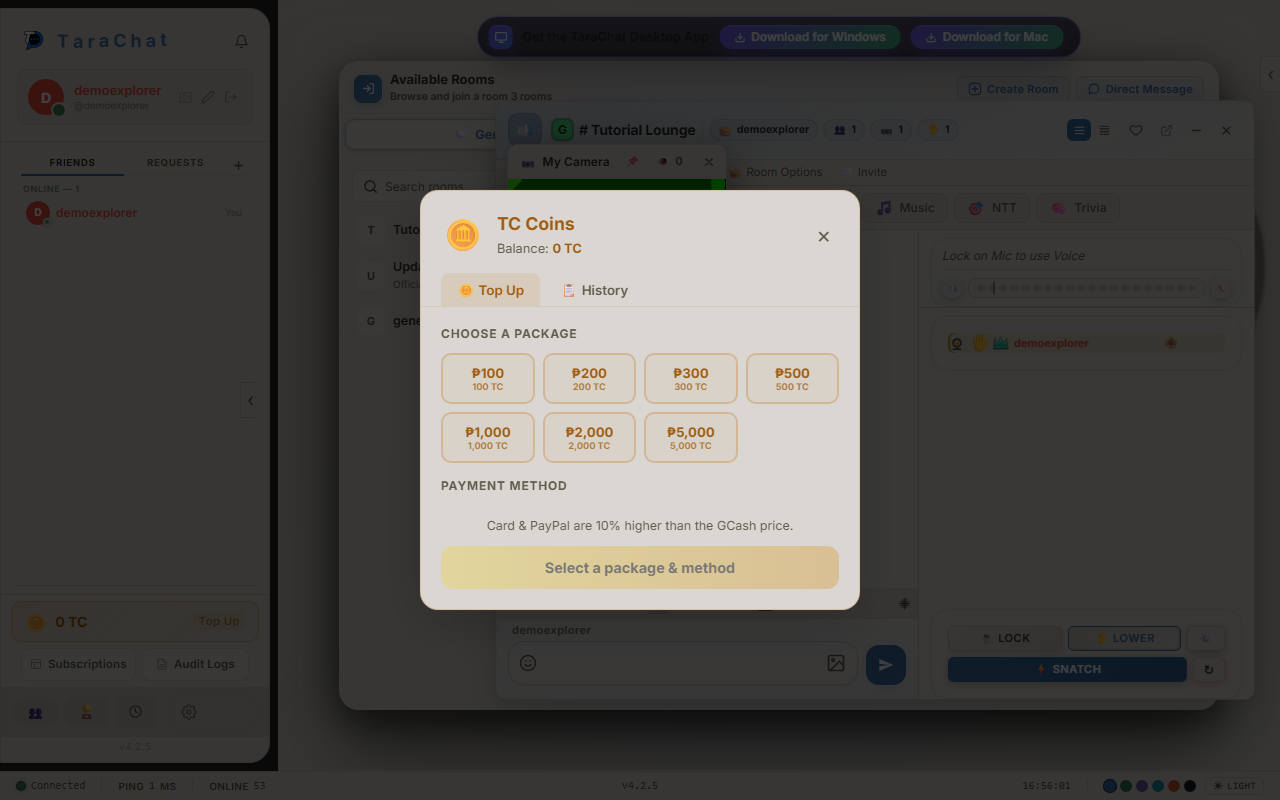
Pick a package, choose a payment method (like GCash, card, or PayPal), and finish paying in the pop-up window that opens. Your balance updates automatically once it's confirmed — no need to refresh the page.
Open a room's menu and click ✨ Services to spend your TC Coins on cosmetics. You'll see tabs for different things you can buy:
Whatever you pick, you'll choose how long you want it for — 1 month up to a full year. Buying a longer period costs less per month, similar to a phone plan discount.
You don't have to install anything to use TaraChat — the website works on its own. But the desktop app is handy if you want TaraChat always ready in your taskbar or dock.
Windows: download the installer, double-click it, and follow the prompts. After that, it updates itself — you won't need to reinstall it again.
Mac: download the DMG file, then drag the TaraChat icon into your Applications folder.
- macOS might say the app "is damaged and can't be opened." This isn't really damage — it just means the app hasn't been formally verified by Apple yet. Fix it by right-clicking the app and choosing Open instead of double-clicking.
- If you open TaraChat straight from the downloaded file instead of Applications, it will ask you to move it to Applications first before it can update itself.
Everything you learned above works the same way on the desktop app. The one big difference: on the website, rooms and DMs open as boxes inside your browser tab. On desktop, each one opens in its own separate window — so you can drag a room to a second monitor, or keep several open side by side.
The desktop app also sits quietly in your system tray (next to your clock) so you can get to it quickly, and it updates itself in the background — you'll rarely have to reinstall it by hand.
The team has spent the most time recently improving the Raise Hand and Snatch voice system from Step 10 — handing the mic between speakers is now noticeably faster, and TaraChat is better at keeping you connected even on a shaky internet connection.
This guide gets updated as new things ship — if a screenshot ever looks a little different from what you see, it's probably because something new just landed.